Draw a filter sweep
A filter sweep is the classic build-up: a synth starts dull and gets brighter over four bars until the next section hits. A low-pass filter removes the high frequencies above its Cutoff; raising the cutoff lets the highs back in.
- Give the synth its own Mixer insert (see How a sound reaches the speakers).
- Add the Filter effect to that insert and select LP.
- Play the part and turn Cutoff by hand.You hear which values sound closed and which sound open.
- Drag across the Playlist ruler over the bars the sweep should cover.The loop is highlighted on the ruler.
- Right-click the Cutoff knob and choose Automate on the playlist.An automation clip covering the loop appears on the first empty track, or on a new track at the bottom.
- Drag the clip's left point down and its right point up.A rising line.
- Click the ruler at the start of the clip and press Space.The Cutoff knob follows the line and the synth gets brighter.
With no loop set, the clip starts at the playhead and lasts four bars. If the line is hard to see, drag the bottom edge of the track header down to make the track taller.
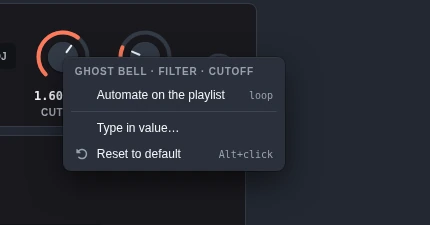
- Automate on the playlist shows loop when a loop is set, and 4 bars when it is not.
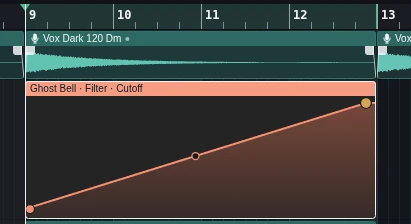
- Low start: the filter is mostly closed.
- High end: more of the highs come through.
Any knob, fader or slider works the same way: right-click it and choose Automate on the playlist.
Change the shape of the movement
A straight line changes at an even pace. Often you want the change to happen mostly at the end, or to jump at a section boundary. In the clip, left to right is time and bottom to top is the control's value.
- Bend the line: drag the small dot halfway between two points. Bend it so the sweep stays dark longer and opens quickly just before the next section.
- Add a point: right-click empty space in the clip.
- Move a point: drag it. Hold Shift to keep its value, Ctrl to keep its time, Alt to move it off the grid.
- Delete a point: double-click it. Double-click a bend dot to straighten the line.
- Several points: Ctrl + drag to select them, then drag one to move them all or press Delete.
Make a value jump instead of glide
- Add a point on the section boundary and drag it to the new value.
- Right-click that point and choose Hold under Curve.The control stays at the previous point's value, then jumps at this point.
The same menu can type in an exact value and has other curve shapes, such as Stairs and Wave.
If the knob stops following the line
Moving an automated knob by hand during playback takes over from the line. Right-click the knob and choose Re-enable automation, or stop playback, to hand control back. To find a control's automation clip, choose Select automation clips in the same menu.
Record a knob move
Recording is faster than drawing when you want a performed, human feel: you turn the knob while the song plays, and Synkopa writes the movement into an automation clip.
- Right-click the Record button in the toolbar and tick Automation. Untick Audio and Notes if you only want the knob move.
- Choose how writing stops. With Latch off, writing stops as soon as you let go of the knob. With Latch on, the last value keeps being written until playback stops.
- Click the ruler a bar or two before the move.
- Press R to arm Record, then Space to play.
- Turn Cutoff through the transition.
- Press Space to stop, then R to turn Record off.The move appears as points in the knob's automation clip.
- Play the same bars again without touching the knob.The knob repeats your move.
Each recorded move is one undo step. If part of it is too abrupt, drag its points or bend the line between them.