Choose a pitch tool
Synkopa has three ways to fix pitch. They solve different problems, and you can combine them.
| Tool | What it does | Use it when |
|---|---|---|
| Pitch Correct (mixer effect) | Tunes everything that passes through the insert, live while the song plays, toward the nearest note of a key. You edit nothing in the recording. | The singer is mostly in tune and you want it tighter, or you want the hard "robot" tuning sound. |
| Pitch editor, Manual | Shows every sung note as a block. You move, straighten or reshape single notes by hand. | One or a few notes are wrong and you want the fix to sound natural. |
| Pitch editor, To reference | Pulls each note of the take onto a melody you give it: notes in a pattern, or another recording of the same melody. | Many notes miss, or the nearest note of the key is the wrong target. |
Why not just use Pitch Correct? It only knows the key, so a note sung closer to the wrong scale note is pulled to the wrong note. The pitch editor lets you decide the target note yourself.
Open the pitch editor
The pitch editor works on one ordinary audio clip. If your vocal is a comp of several takes, flatten it first; flattening removes the takes, so keep a copy of the project that still has them.
- Play the comp once and check that the joins between takes sound natural.
- Press Ctrl + S to save the project with its takes.
- Choose File → Save as… and give the working copy a new name.
- Right-click the comp's name and choose Flatten comp.One audio clip replaces the comp on the same track.
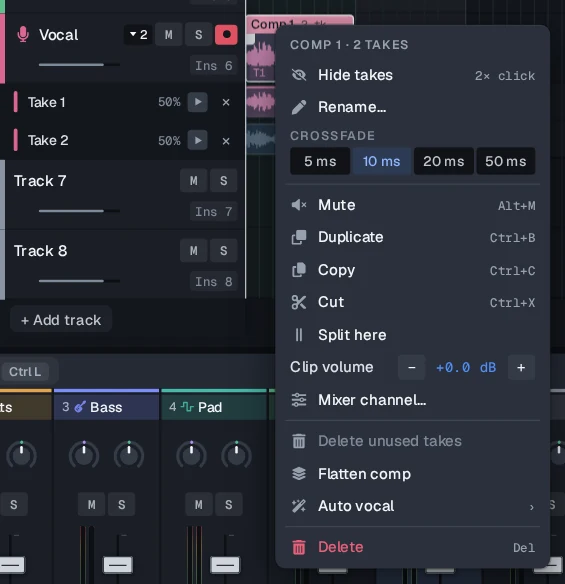
- After saving a version with the takes, choose Flatten comp.
- Right-click the new audio clip's name and choose Edit pitch….After a short analysis, each sung note appears as a block on a piano grid, with a line tracing the exact pitch over time. Breaths and other unpitched sounds sit below the grid and are never changed.
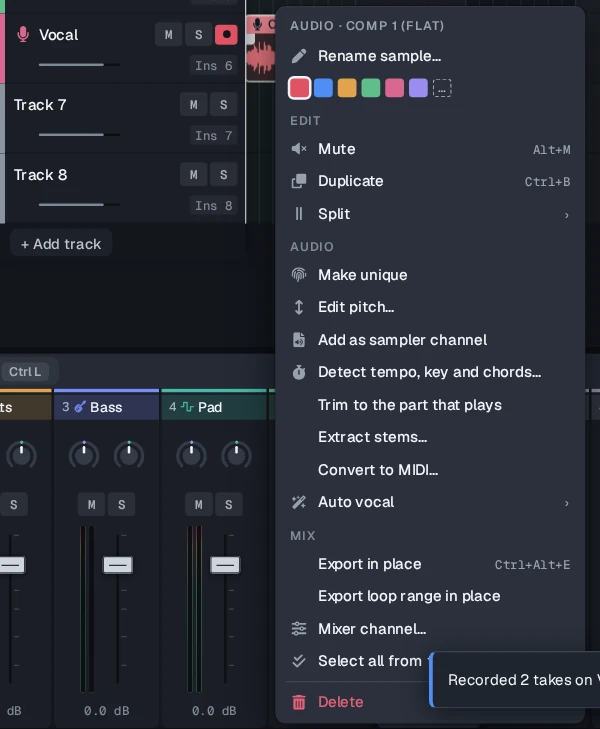
- Right-click the clip's name and choose Edit pitch….
No recording yet? Drag any solo vocal file onto the Playlist, or choose File → Open demo project and open Edit pitch… on the first Vox Dark 120 Dm clip on the Dark Vox track.
Fix one off-key word
Fixing only the note that is wrong keeps the rest of the performance exactly as sung. Work by ear first, then by eye.
- Set Mode to Manual, and set Key and its scale to the key of the song.
- Drag on the ruler around the word to loop it, then click Play.The word repeats with the backing. Solo plays the vocal alone.
- Find the block under the word. Press F to fit the whole take in view, or Ctrl + mouse wheel to zoom in.
- Press 1 for the Pitch tool and drag that block up or down to the note it should be.It snaps to the notes of the key and stays at the same time.
- Listen to the loop again. For a smaller, unsnapped move, hold Alt while you drag.
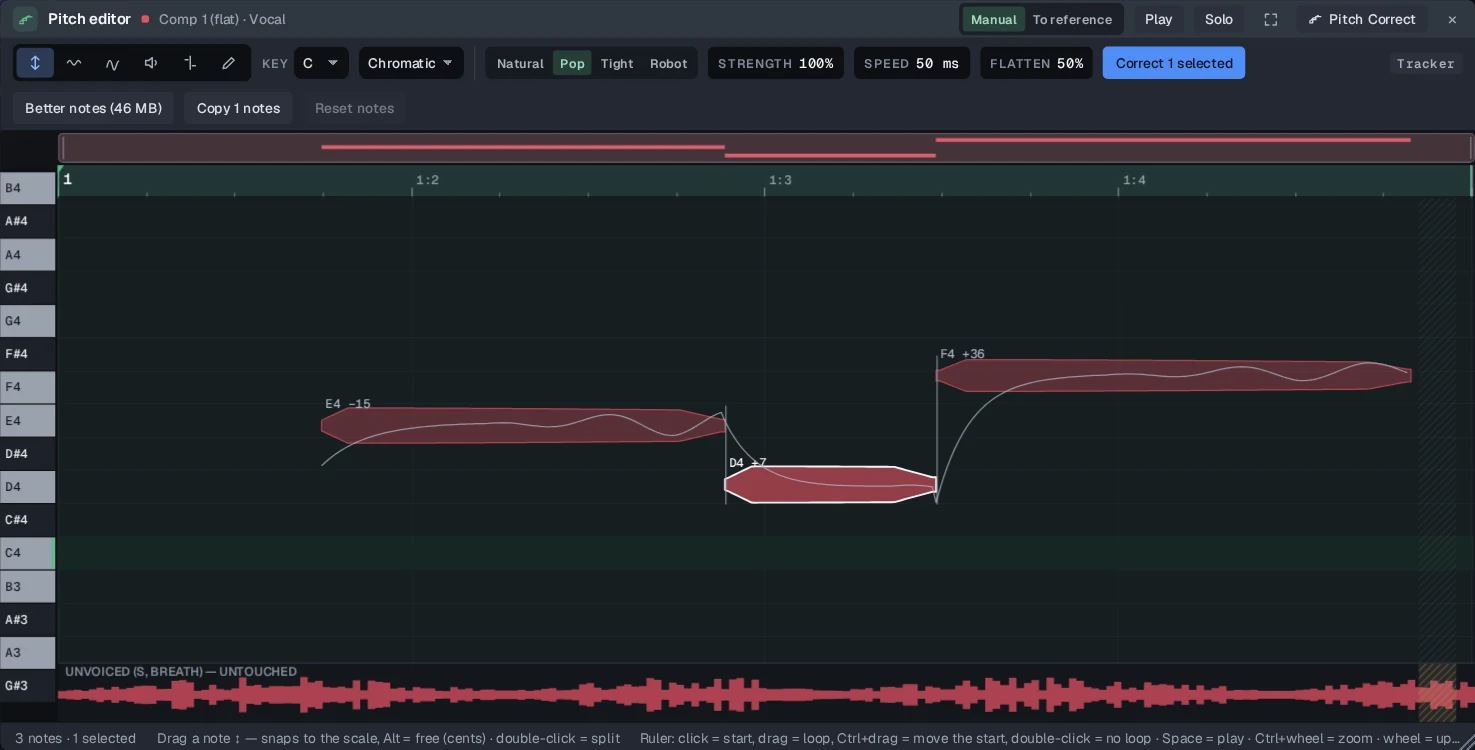
- Before: the selected syllable sits on D4.
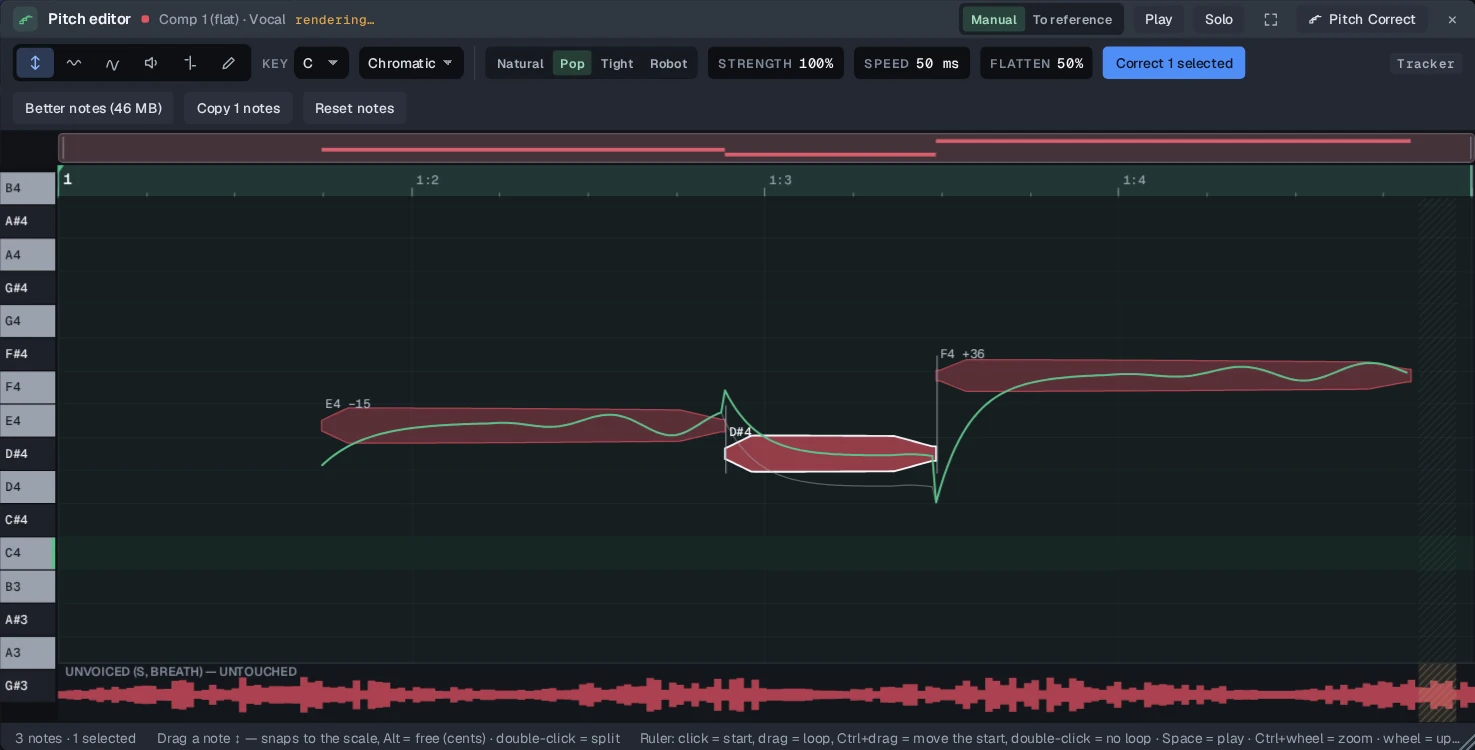
- After: the note is higher, but starts and ends at the same place on the ruler.
Let Synkopa pull a note into tune
If the nearest note of the key is the right target, you do not need to drag. Click the block, pick the Natural style in the toolbar (beside STRENGTH), then click Correct 1 selected. With nothing selected, the button reads Correct all.
- STRENGTH
- How far each note moves toward the target: 100% lands exactly on it.
- SPEED
- How quickly the voice reaches the note. 0 ms is the instant "robot" step; 100 ms or more keeps the singer's natural slide into the note.
- FLATTEN
- How much of the wobble inside each note is removed. Keep it low to keep the singer's vibrato (the regular, intended wobble of a held note).
Other tools for one note
| Tool | Key | Use it to |
|---|---|---|
| Drift | 2 | Steady a long note that wavers too much. |
| Formant | 3 | Fix the voice's color if a pitch move made it sound thin or boomy. |
| Volume | 4 | Turn down one syllable that jumps out. |
| Split | 5 | Cut a block in two where two syllables share it, so you can fix them separately. Click a split to join it again. |
| Pencil | 6 | Redraw a scoop or slide by hand. Alt + drag erases the drawing. |
Analysis failed or the notes look wrong
- If analysis fails, click Try again.
- The built-in pitch detector works without downloads. Download RMVPE (362 MB) installs a more accurate one, and Better notes (46 MB) installs GAME, which splits a note sung twice on one pitch and ends notes where the singing does. Both are optional; the download dialog shows each license.
Compare before and after
A pitch fix that looks right can still sound forced. Always judge it in the mix.
- Keep the loop around the word and press Ctrl + Z.You hear the original pitch.
- Press Ctrl + Shift + Z to bring the edit back.
- Listen to how the word starts and ends. If it sounds unnatural, make a smaller move or lower FLATTEN.
- Double-click the ruler to clear the loop when you are done.
To undo edits later, select a block and click Reset notes (or press Delete). With nothing selected, Reset removes all manual edits of the clip.
Tune a take to a melody
When many notes miss, fixing them one by one is slow, and Pitch Correct may pick the wrong targets. To reference instead pulls the take onto the melody it should follow. The take keeps its own timing; only the pitch changes.
First give Synkopa the melody, in one of two ways:
- Notes in a pattern: write or play the melody in the Piano roll and place that pattern on the Playlist at the same time as the vocal. It can sit on its own muted track.
- Another recording: a guide vocal or an a cappella of the same melody, placed on the Playlist.
- In the pitch editor, set Mode to To reference.
- Under REFERENCE, pick the melody from Melodies in the project or Recordings.Three lines appear: the original, the reference and the result.
- Leave Octave on Auto, so the reference moves to the octave nearest the voice.
- Click Apply and play the vocal with the backing.
- CORRECTION
- How strongly to pull toward the reference. Lower it to keep more of the original pitch.
- VIBRATO
- How much of the singer's own vibrato and note-to-note slides to keep.
- REF. INFLUENCE
- Where note centers come from: 100% from the reference, 0% from the nearest note of the key.
Parts where the take and the reference do not clearly match are left as sung. If you change the melody in the Piano roll later, click Update. To go back to the singer's pitch while keeping your manual edits, click Turn off.
Shortcut from the Piano roll: select the melody's notes and click Vocal reference to open the pitch editor of the vocal under them, with that melody as its reference.
Hear the reference pull the melody into tune
Play the guide, then the original and the tuned take. The original is about 47 cents sharp on each note (a cent is a hundredth of a semitone). Listen for all three notes to settle on the guide's pitches while the rhythm stays the same.
Guide melody
Original take
Tuned take
The example uses three synthesized vowel-like notes, tuned with the built-in detector. The tuned notes measured within 1 cent of the targets.
To reproduce it from the command line, download the original take and the guide melody and run this command in that folder.
synkopa tune-file --yin --take pitch-example-take.mp3 --reference pitch-example-reference.mp3 --out pitch-example-tuned.wavThe other way round: Copy notes (Ctrl + C) copies the sung notes, and Ctrl + V in the Piano roll pastes them into a pattern, for example to double the vocal line with a synth.
Give the vocal its own effects
Effects for the vocal go on its own mixer insert: a Mixer strip with its own fader and effect chain (see How a sound reaches the speakers). If the vocal shares an insert with other sounds, every effect changes them too.
- Right-click the vocal track's header, choose Mixer channel and pick an insert no other sound uses.
- Press F9 to open the Mixer and play the vocal.The insert you picked is selected and its meter moves.
- Set the level with the insert's fader first, then add effects to its slots.
Start from a ready vocal chain
Auto vocal builds a typical vocal chain for you, which is a good starting point to adjust by ear.
- Right-click the vocal clip's name and choose Auto vocal → Auto vocal — singing, or Auto vocal — rap for faster leveling and harder tuning.Synkopa analyzes the take, may even out its volume in the recording itself, and adds effects to the insert: leveling, compression, a de-esser, pitch correction in the song's key, a little reverb and a limiter.
- Play the vocal in the full mix and adjust or bypass effects you do not need.
The track must play through its own insert, not the Master. On a comp, Auto vocal flattens it first. One Ctrl + Z removes everything it added.
- Compression
- Turns down the loudest moments so the quiet and loud words sit closer together.
- De-esser
- Tames harsh "s" and "sh" sounds.
Auto vocal adds Pitch Correct as live tuning. If you already fixed the notes in the pitch editor, compare with that effect bypassed and keep whichever sounds better. To tune live without Auto vocal, add Pitch Correct yourself and set its Key and Scale.
Save and export
- Press Ctrl + S to save the editable project.
- To send someone the project with its recordings, choose File → Export project as ZIP….
- For a file to listen to, choose File → Export audio…, set Output to Mix and Range to Song, or Loop for just the looped phrase. Set a Tail so reverb can ring out after the end.
- To hand over the vocal as a separate file, choose Stems instead of Mix: each insert becomes its own file.
- Play the exported file and check the edited word and the end of the phrase.
Next: mix the song or see every export option.