Export the song as WAV or MP3
Do this when the song is finished, or whenever you want to play a draft on your phone or send it to someone.
- Choose File → Export audio… (Ctrl + Shift + R).
- Set Output to Mix: one file with everything.
- Set Range to Song for the whole Playlist, or Pattern for the current pattern alone.
- Choose a Format: WAV for full quality (to master or edit further), MP3 for a small file to share.
- Choose a Tail: 2 s or 8 s leave time after the end for the last reverb or delay to fade. Cut stops exactly at the end.
- Click Export… and choose where to save.When it finishes, the status line names the file, its length and its peak level, and how many samples clipped, if any.
- Open the file in any player and listen to the start, the loudest part and the ending.
If the ending is cut off, export again with a longer Tail. If the export reports clipped samples, the mix is too loud: turn the faders down, or keep a Limiter or the Master effect last on the Master insert (see Master and measure).
Format settings
- MP3 quality
- 320 kbps is the best.
- Bit depth (WAV)
- 16 for CD and the widest compatibility, 24 for masters and delivery, 32 float for further editing (nothing above 0 dB clips).
- Dither
- Adds a tiny amount of noise when converting to 16 or 24 bits, so fades end in soft hiss instead of distortion. Leave it on for 16-bit.
- Sample rate
- 48 kHz for video and most streaming, 44.1 kHz for CD.
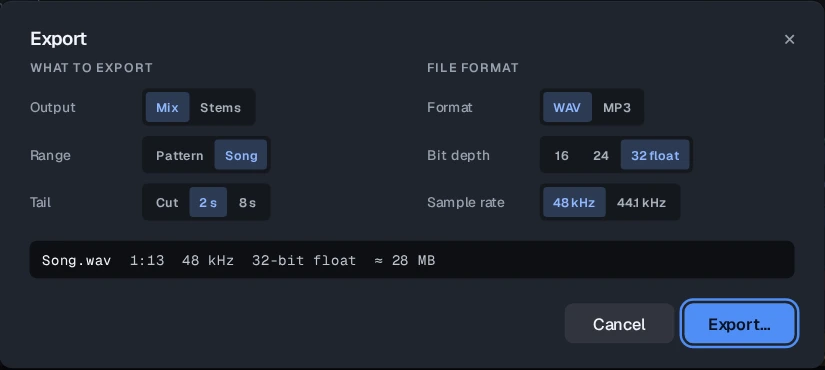
- Output: Mix makes one file.
- Range: Song uses the whole Playlist.
- Export… renders the file.
Empty Playlist? Song would be silence, and the dialog offers to export the current pattern instead.
Export a loop that repeats seamlessly
A loop for a sample pack or a beat to reuse must repeat without a gap or a click. Wrap takes the reverb and delay that ring past the end and mixes them into the start, so the file is exactly one pass long and still sounds continuous.
- Drag across the Playlist ruler from the first bar of the loop to the bar where it should repeat.The selected range is highlighted.
- Play it in SONG and listen across the join.
- Open File → Export audio… and set Output to Mix, Range to Loop and Format to WAV.
- Set Tail to Wrap, then click Export….
- Drag the WAV into a project at the same tempo and place two copies end to end.They play as one continuous loop.
Hear a gap or a doubled beat? Check that the ruler selection starts and ends exactly on the bars you meant.
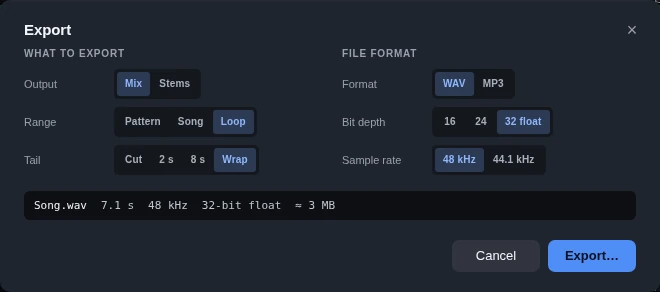
- Loop uses the range selected on the ruler.
- Wrap carries the tail across the join.
Export stems for mixing or mastering elsewhere
Stems let a mix engineer or another program rebuild your song: each Mixer insert that has sound becomes its own file, named after the insert. All files have the same start and length, so they line up when placed at the same point. Each stem includes its insert's effects, fader and pan, but not the Master insert's effects.
- Name the Mixer inserts clearly (double-click a name). The file names come from them.
- Unmute every insert you want exported. Muted inserts are skipped; solo is ignored.
- Open File → Export audio… and set Output to Stems.
- Set Master to Include to add the finished mix, with the Master effects, as a reference file.
- Choose WAV, then click Pick folder… and choose an empty folder.One WAV per insert appears in the folder, plus the master mix if you included it.
To check the stems, drag them from your file manager onto separate Playlist tracks of an empty project at the same tempo, all at the same start, and play them.
A bus and the inserts that feed it are all exported. When you rebuild the song, use either the bus or its sources, not both, or that part plays twice as loud. The reassembled stems can also sound different from the master mix if the Master insert has a compressor or limiter.
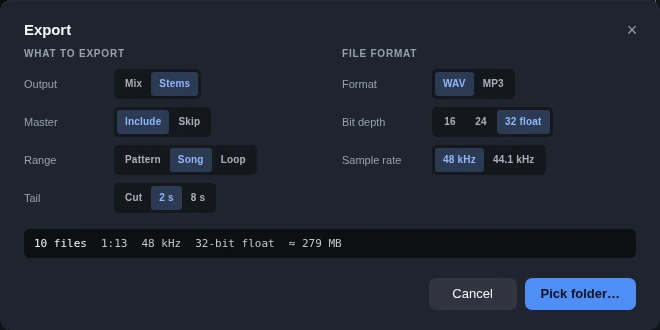
- Stems writes one file per Mixer insert.
- Include adds the finished master mix as a reference.
- Pick folder… chooses where the files go.
Share the editable project
A .synkopa file refers to samples and recordings stored elsewhere on your computer. To send the project to another computer, pack everything into one ZIP.
- Save the project (Ctrl + S).
- Choose File → Export project as ZIP… and save the file.The ZIP holds the project, its samples and its recorded takes.
- To test it, extract the ZIP into a new folder and open the
.synkopafile inside.The audio plays.
Tell the recipient to extract the whole ZIP and keep the Audio folder next to the project file. Third-party plugins are not included, nor files loaded inside them: list them separately, and send a mix or stems too, so the song can be heard without those plugins.
Other exports
- Export in place (Ctrl + Alt + E, also in the File menu and a clip's menu): turns the selected clips, with their mixer effects, into one audio clip on a new track below and mutes the originals. Use it to commit a part with its effects, or to edit it as audio.
- File → Export song as MIDI…: writes the notes as a standard MIDI file, one track per channel, to open in another program.