1. Install Synkopa
Synkopa is free. Download the file for your computer from the latest release (scroll to Assets).
| Your computer | Download | What works |
|---|---|---|
| Windows | The file ending in -setup.exe | Everything, including VST3 plugins and ASIO audio interfaces |
| Mac with Apple Silicon (M1 or later), macOS 13.4 or newer | The .dmg file | All built-in instruments and effects. No third-party plugins yet, and no build for Intel Macs |
| Linux: Ubuntu 22.04, Debian 12 or a newer distribution | .deb, .rpm or .AppImage | Everything, including VST3 plugins and LV2 effects |
Windows
- Double-click the downloaded
-setup.exefile. - Follow the installer.Synkopa is installed, and
.synkopaproject files open in it from Explorer.
If Windows shows Windows protected your PC, click More info, then Run anyway.
macOS
Synkopa is not notarized by Apple yet, so macOS blocks it the first time you start it. You allow it once and it opens normally from then on.
- Open the
.dmgfile and drag Synkopa into Applications. - Start Synkopa from Applications.macOS says Synkopa cannot be opened. Close that message.
- Open System Settings → Privacy & Security.
- Scroll down to the message about Synkopa and click Open Anyway.
- Start Synkopa again and confirm that you want to open it.Synkopa starts. You will not be asked again.
Linux
Pick one package. The .deb and .rpm packages also install liblilv, the library Synkopa needs to load LV2 effects.
- Debian, Ubuntu: run
sudo apt install ./followed by the.debfile name. - Fedora: run
sudo dnf install ./followed by the.rpmfile name. - Any distribution: make the AppImage executable (
chmod +xfollowed by its file name) and run it.
2. Start Synkopa and play the demo
The first time you start Synkopa, it shows Welcome to Synkopa and offers a finished song. Playing it is the quickest way to check that your sound works.
- Click Open demo project.OBSIDIAN 2093, a 40-bar trap song, opens.
- Press Space.You hear the song and a line (the playhead) moves across the Playlist, the big timeline in the middle.
- Press Space again to stop.
Clicked Start empty instead, or the welcome did not appear? Choose File → Open demo project. It works the same at any time.
Heard the song? Your setup is done. Go to How Synkopa works, or straight to Make your first song. If the playhead moved but you heard nothing, continue with the next step.
3. Choose where the sound plays
Synkopa plays through the device your computer uses by default. If that is not where your headphones or speakers are, or if you have an audio interface (an external sound card for microphones and studio speakers), choose it here.
The settings, in plain words:
- Driver
- How Synkopa talks to your sound hardware. On Windows, WASAPI works with every sound card; choose ASIO only if your audio interface came with an ASIO driver, which gives less delay. On a Mac there is only Core Audio. On Linux, choose ALSA, or JACK if you run JACK or PipeWire.
- Output
- The device you listen on. Default follows your system's sound settings.
- Input
- The device you record from, such as a USB microphone. You only need it for recording.
- Input channel
- Which socket of the input device is recorded (a microphone is usually on input 1). The list fills in once recording or input monitoring is on.
- Sample rate
- How many times per second the sound is measured, for example 48000 Hz. Leave it on Auto.
- Buffer
- How much sound Synkopa prepares ahead of time. Leave it on Auto; Fix crackles and delay explains when to change it.
- Choose File → Settings….
- Click Audio on the left.
- Choose a Driver. If you are not sure, keep the one already selected.
- Set Output to your headphones, speakers or audio interface.
- Check the Status line.It says ● running, followed by the sample rate, the buffer size and the delay in milliseconds.
- Press Esc to close Settings, then press Space.You hear the demo through the device you chose.
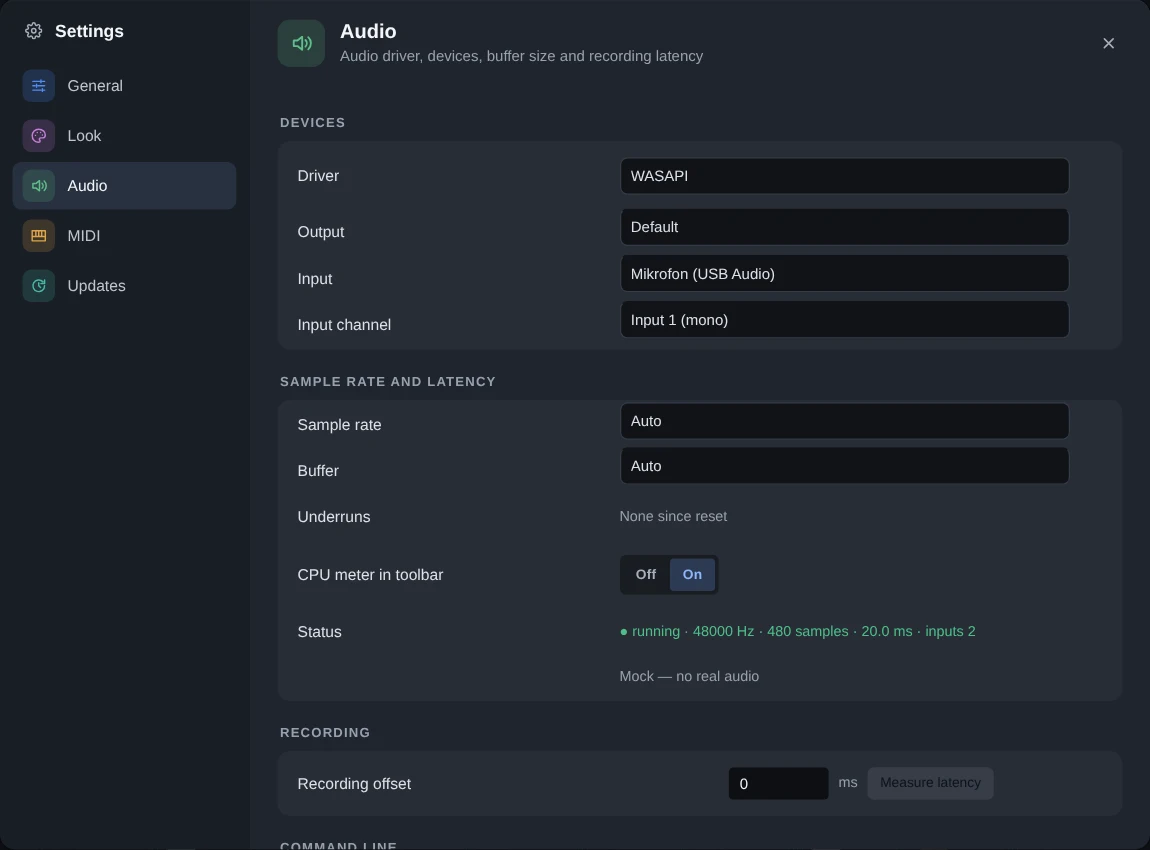
- Driver: how Synkopa reaches your sound hardware.
- Output: where you listen. Input and Input channel below it are for recording.
- Status: ● running means sound can play.
If you still hear nothing
- Status says ● stopped, or you see “Cannot play — the audio output did not open”: choose another Output or Driver, or click Try again in the message. On Windows, WASAPI with Output Default works with any sound card.
- “Windows has no default audio output”: plug in headphones or speakers, or choose a default output in the Windows sound settings, then try again.
- Your ASIO interface is unplugged: click Switch to WASAPI in the message or in Settings to keep playing through the computer's speakers. After you plug it back in, choose ASIO again or click Retry ASIO.
- “ASIO is not compiled into this version”: this build has no ASIO. Use WASAPI.
Sound works but one project is silent? See The project plays in silence. Ready to record? Set up a microphone or connect a MIDI keyboard.
Fix crackles and recording delay
Synkopa computes sound in small chunks, the buffer. A larger buffer gives the computer more time per chunk, so it crackles less, but everything you play or sing comes back a little later. That delay is called latency. Pick the smallest buffer that plays without crackles.
Playback crackles or drops out
A crackle happens when a chunk is not ready in time. Synkopa counts each one as an underrun. The CPU meter in the toolbar flashes red when one happens.
- Play the busiest part of your song in a loop.
- Open File → Settings… → Audio and look at Underruns. Click Reset next to it if it shows a count.
- If the count climbs, choose the next larger Buffer. While mixing, 512 or 1024 samples is fine.Underruns stays at None since reset while the loop plays.
Still crackling? Close other heavy programs. Many instances of heavy plugins cost the most.
You hear yourself late while recording
When you play a MIDI keyboard or sing through Synkopa, a large buffer makes the sound reach your headphones late. Choose a smaller Buffer while you record, then raise it again for mixing.
Recordings land behind the beat
Your interface takes a few milliseconds to send sound out and bring it back. Synkopa can measure that delay once and shift every new recording back into time.
- In a quiet room, hold the microphone near a speaker or one headphone cup.
- In File → Settings… → Audio, click Measure latency.Synkopa plays a few clicks for about five seconds, then fills in Recording offset.
- Record a short test against the metronome (Ctrl + M) and check that the waveform lines up with the beat.
If Synkopa reports an uncertain measurement, move the microphone closer, turn the volume up and try again. A positive offset moves recordings earlier.
With the JACK driver on Linux, JACK or PipeWire sets the sample rate and buffer size. Change them there.
Arrange the windows
The Channel Rack, the Piano roll and the Mixer can float over the Playlist or dock to an edge of the screen. Arrange them so the windows you use most stay in view.
- Open a window with its key: Channel Rack F6, Piano roll F7, Mixer F9.
- To dock it, drag its title bar onto one of the arrows that appear, or choose a position in View → Window layout.
- To give the Mixer the whole screen, double-click its title bar.
F5 brings the Playlist to the front and hides floating windows; press it again to show them. F11 switches full screen. If you lose track of a window, View → Window layout → Reset window layout docks the Mixer at the bottom, floats the Channel Rack and Piano roll, and shows the Browser.
To change how Synkopa looks, open File → Settings… → Look: Theme, interface Scale and Channel Rack step spacing. Language, note preview and hints are in General.
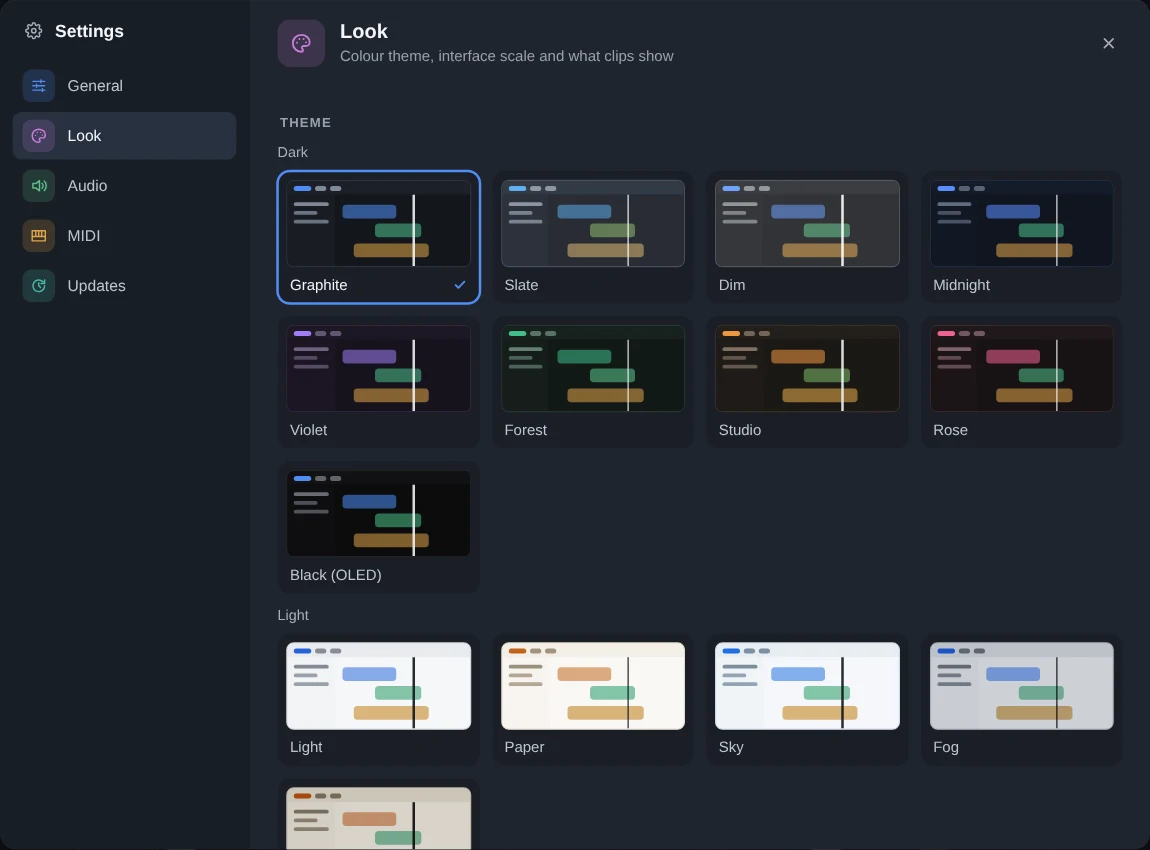
- Look: the interface settings.
- Click a theme. Scale and step spacing are further down.
Keep Synkopa up to date
Synkopa updates itself. A new version downloads in the background, and nothing restarts until you say so.
- When an update is ready, click Restart to update in the toolbar.
- Save your project if Synkopa asks about unsaved changes.Synkopa restarts in the new version and shows what changed.
To check right now, choose Help → Check for updates. If a new version is available, click Download update, then Restart and install when it is ready. To stop automatic updates, turn off Update automatically in File → Settings… → Updates; the same page shows your version.
If an update fails, the version you have keeps working. You can always install the newest version from the release page.