Program a beat in the Channel Rack
The Channel Rack is the fastest way to write drums. Each row is one sound (a channel), and each of its 16 buttons (steps) is one sixteenth note of a bar. A lit step plays the sound at that moment.
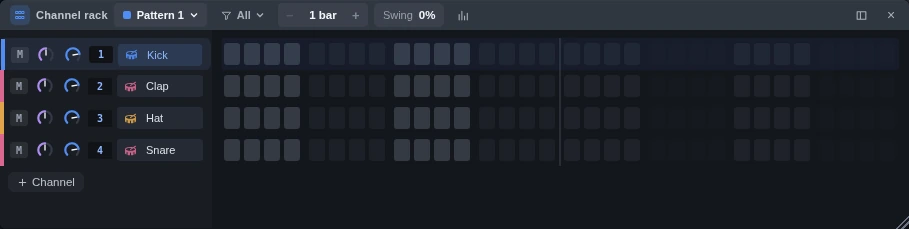
- Step 1 of the Kick row: the start of the bar.
- Step 5 of the Clap row: beat 2.
- Every other Hat step is an eighth note.
- Choose File → New project.The Channel Rack shows Kick, Clap, Hat and Snare. If it is hidden, press F6.
- On the Kick row, click steps 1, 5, 9 and 13.
- On the Clap row, click steps 5 and 13.
- On the Hat row, click every odd step (1, 3, 5 … 15).
- Make sure PAT is lit in the toolbar (press L to switch), then press Space.You hear a kick on every beat, a clap on beats 2 and 4, and hats in between.
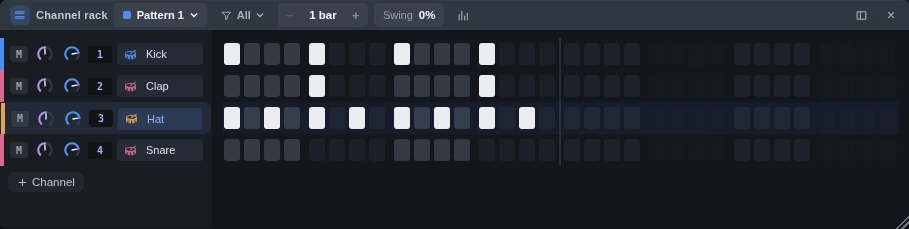
- Kick starts the bar and marks each beat.
- Clap lands on beats 2 and 4.
- Hat fills the spaces between beats.
- Remove a step: right-click it. Drag across steps to light or clear several. Ctrl + Z undoes any edit.
- Hear one sound: Ctrl-click the channel's name.
- Add groove: drag SWING in the Rack's title bar. Swing delays every second sixteenth, so straight hats start to bounce.
Make the pattern longer, or start the next one
A pattern is as long as its last note, rounded up to a whole bar. Next to the bar count in the Rack's title bar, + adds an empty bar at the end and − removes the last bar together with its notes.
For the next part of the song (a fill, a chorus beat), start a new pattern instead: press F4, or click New in the Browser's PATTERNS tab. The new pattern uses the same channels. Right-click a pattern in that tab to Rename…, Clone or delete it.
Loop one row at its own length
Sometimes one sound should repeat on a shorter cycle than the bar: a 3-step shaker against a 16-step kick gives a rolling, off-kilter groove. A channel loop repeats a row's first steps to fill the pattern, so you write the figure once.
- Right-click the Hat channel and choose Loop → 3 steps.Steps 1–3 stay editable. The repeats show as faint ghost steps, and a line in the channel's colour marks where the loop ends.
- In those three steps, keep only step 1 lit (right-click step 3 if it is on).
- Press Space in PAT.The hat lands every three steps and drifts against the kick, which still repeats every bar.
Loop lengths go from 1 step to 1 bar, always shorter than the pattern. Setting a loop deletes that channel's notes past it, as one undo step.
- Edit one repeat on its own: right-click the channel and choose Burn repeats into steps. Every repeat becomes a real step and the loop ends.
- Stop looping: choose Loop → Off. Only your original steps remain.
- − will not shorten the pattern: a channel loop would stick out of the shorter pattern, and the status line says so. Shorten the loop or burn its repeats first.
Make single steps softer, higher or later
Identical hits sound mechanical. The graph editor under the Rack lets you change each step of the selected channel without opening the Piano roll.
- Click the Hat channel to select it, then press G (or the graph button in the Rack's title bar).A lane opens under the steps.
- Pick Vel (velocity: how hard a note is hit) and drag every second hat bar down.
- Play the pattern.The hats now pulse between loud and soft.
| Lane | What it changes | Try |
|---|---|---|
| Vel | How hard each step hits | Softer offbeat hats |
| Key | The pitch of each step | An 808 that follows the chords |
| Pan | Left–right position of each step (sampler, Synth and Synkopa Instruments channels) | Hats that move across the speakers |
| Shift | Starts a step slightly late | Pushed hats, flams |
Alt-click a step in the lane to put it back to its default.
Put each sound on its own Playlist track
When you arrange, you may want the kick to drop out while the hats keep going. Split by channel turns one drum pattern into one pattern per sound.
- In the Browser's PATTERNS tab, right-click a pattern that plays at least two channels.
- Choose Split by channel.The pattern is replaced by one pattern per channel. Every clip of it on the Playlist becomes one clip per channel, on the tracks below.
Changed your mind? Ctrl + Z brings the single pattern back.
Draw melodies in the Piano roll
Steps only say when a sound plays. For notes with pitch and length (bass lines, chords, melodies), use the Piano roll: keys run bottom to top, time runs left to right.
- In the Channel Rack, click + Channel and choose an instrument, for example Empty synth. Play instruments helps you pick one.
- With the new channel selected, press F7.The Piano roll opens. Its top bar names the pattern and the channel you are writing for.
- Set Snap to 1/16 and pick the Draw tool (P).
- Click three times in bar 1, on different rows.Three notes appear.
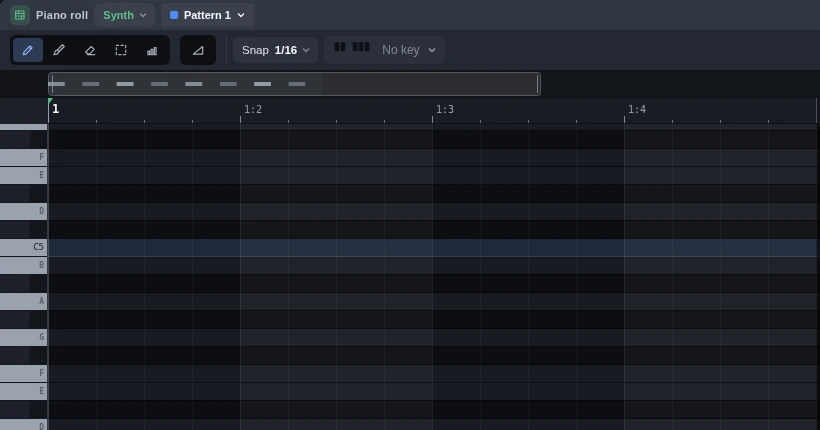
- Put the first note on a row near the middle of the keyboard.
- Place the next note farther right: it starts later.
- A different row is a different pitch.
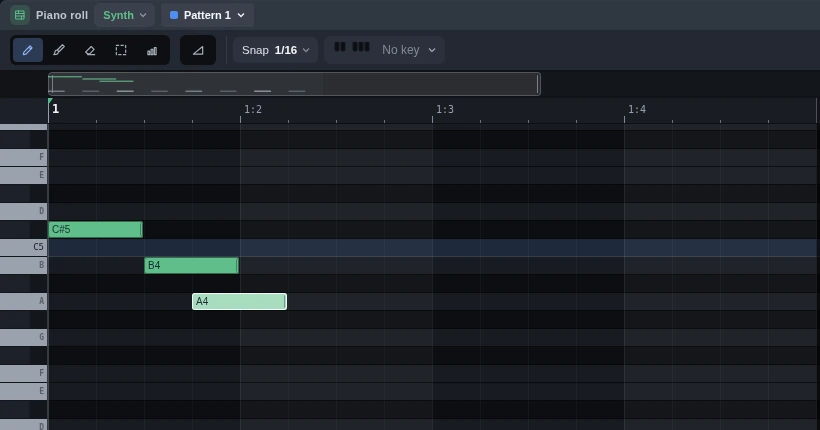
- This note begins the phrase. Its left edge is where it starts.
- Drag a note's right edge to change its length.
- Drag a note up or down to change its pitch.
Edit what you drew
| To | Do this |
|---|---|
| Move a note | Drag its body |
| Lengthen or shorten it | Drag its right edge |
| Delete it | Right-click it |
| Select several | Switch to Select (E) and drag a box, or Ctrl-drag in any tool |
| Repeat the selection to the right | Ctrl + B |
| Pull note starts onto the grid | Ctrl + Q (quantize) |
| Make a note softer or louder | Drag its bar in the Vel lane under the notes |
With nothing selected, Ctrl + B, Ctrl + Q and the arrow-key moves act on every note of the channel in this pattern. If quantize moved too much, undo, select only the notes to fix and try again.
The roll is empty but the pattern plays? You are looking at another channel: pick the right one in the channel selector at the top of the roll. Other channels' notes show as faint ghost notes. More tools (chords, arpeggios, strum, humanize) are in the roll's Tools menu.
Use patterns in a song
A pattern does nothing for the song until you place it on the Playlist. Each placed copy is a clip, and every clip of a pattern plays the same notes: change the pattern once and all its clips follow. To change only one clip (say, a fill at the end of a section), right-click its name bar and choose Make unique first. Arrange a song walks through it.
Find and load samples
Every drum hit is a sample: a short audio recording. Synkopa ships with a standard library, offers free kits to download, and can browse your own sample folders. All of it is in the Browser's LIBRARY tab (Alt + F8 shows the Browser).
Install a kit or add your own folder
- In LIBRARY, click + (More sounds to download) at the bottom of the list.
- Click Install on a kit.When it finishes, the kit appears in the list next to Standard library.
- For your own samples, click Add under FOLDERS and choose the folder.
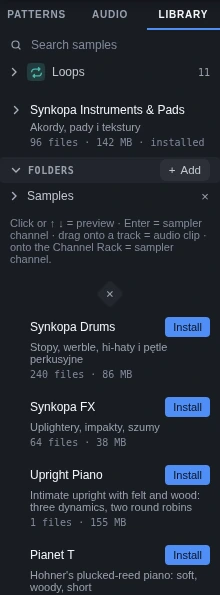
- Click Install on the kit you want.
- Use Add to make a folder of your own samples browsable.
Preview and load a sample
- Type part of a name in the library search, for example
hat. - Click a result to hear it. ↑ and ↓ preview the next one, Esc stops.
- Press Enter, or drag the sample onto the Channel Rack between two rows.A new sampler channel plays it.
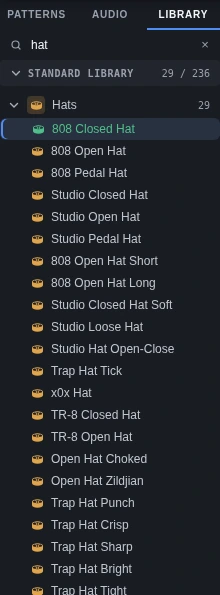
- Search the standard library, installed kits and your folders at once.
- Click a result to preview it. Press Enter to make a sampler channel.
- Swap a sound but keep the beat: drop the sample onto an existing Rack row. Its steps stay.
- Use a whole loop or take as audio: drag it onto a Playlist track instead. It becomes an audio clip you can trim against the song.
- Chop a loop into hits: see the Sampler's Slice page.
A kit is missing while you search? Clear the search and check that it finished installing. A sample went missing after you moved a project? Relink the project audio.