Loudness and peaks in plain words
Two numbers decide whether a master is ready: how loud it sounds on average, and how high its loudest instant reaches. Streaming services turn songs louder than about −14 LUFS down to that level, so pushing far past it mostly costs punch.
- LUFS
- Loudness as people hear it, measured over time. Closer to 0 is louder: −10 LUFS is louder than −14 LUFS.
- Integrated
- The loudness of the whole song from start to end, as one number. This is the value streaming services compare.
- True peak (dBTP)
- The highest point the waveform reaches, including between the digital samples. A file over 0 dBTP can distort when it is played or turned into an MP3.
- Ceiling
- The level a limiter never lets the true peak cross. −1 dBTP is the safe value for streaming.
- Gain reduction
- How many decibels a compressor or limiter is turning the sound down right now. A few dB on the loudest hits is normal; much more flattens them.
Master the song only when the mix itself sounds right. If one instrument is too loud or too dull, fix it on its own insert first: see Mix and route.
Master the song with Master
Use it when the mix is finished and you want it release-ready. Master renders the song up to itself, measures it and sets a whole mastering chain for the loudness you choose: a gentle tone EQ, three-band glue (light compression that holds the mix together), stereo width per band, a clipper that shaves the kick and bass peaks, and a true-peak limiter with a −1 dBTP ceiling. Every setting stays a knob you can change.
- Press F9 and select the Master insert, the first strip.
- Add the Master effect and keep it last in the chain.Its window opens and says Not listened yet: the controls are neutral.
- Choose a Target. Streaming −14 is the default and suits most releases.
- Click Listen to the song.It shows Listening to the song… with a percentage, then the status line reports the loudness and peak it reached. You can Stop it; nothing changes then.
- Turn on Level match, play the loudest section and click the power button at the top left of the window to compare with and without Master.Both play at the same loudness, so you judge the sound, not the volume.
- Turn Level match off again before you export.
Why Level match: a louder version almost always sounds better at first. Level match turns the master down to the mix's own loudness while you compare. Left on, it also keeps the export at the mix's loudness.
- Target
- The integrated loudness to aim for: Dynamic −16, Streaming −14, Balanced −12, Loud −10 or Club −8 LUFS. After you change it, click Listen again.
- Loudness
- How hard the mix is pushed into the limiter. The listen sets it; raise it to go louder.
- Ceiling
- The highest true peak allowed, −1 dBTP by default.
- Tone
- How much of the listen's tone EQ to apply. 0% is flat.
- Glue
- How firmly the three bands are compressed.
- Width per band
- Stereo width of the lows, mids and highs. 0% makes a band mono. The listen narrows wide lows and opens narrow highs.
- Advanced
- The five tone bands, each band's level and glue threshold, Glue time, the crossovers between the bands, and the Clipper.
You can also shape the result in the display: drag the blue dots to change the tone EQ, the dashed lines to move the crossovers, and the orange marks to set each band's glue threshold. Double-click one to reset it. The strip at the bottom shows the last ten seconds: peaks in and out, and how much the clipper and limiter turn down.
What the warnings mean
- stopped short of … to stay clean: reaching the target would cut the song's peaks so hard you would hear crunch and pumping, so Master stopped at the loudest clean level. Turn Loudness up to push further anyway, and listen for distortion on the kick and snare.
- target out of reach: the target would need more than 24 dB of limiting. Make the mix itself denser, or choose a quieter target.
- set for another target: you changed the Target after the listen. Click Listen again.
Changed the mix? Click Listen again, because the settings were made for the old mix.
Master ends in its own true-peak limiter, so you can bypass the Limiter a new project puts on the Master insert and compare: with Master in place it should have nothing left to catch. Keep the Master fader at 0 dB or below: it acts after the Master insert's effects, so the limiter cannot catch what it adds. The toolbar's main volume only sets how loud Synkopa plays on your speakers, not the mix or the export.
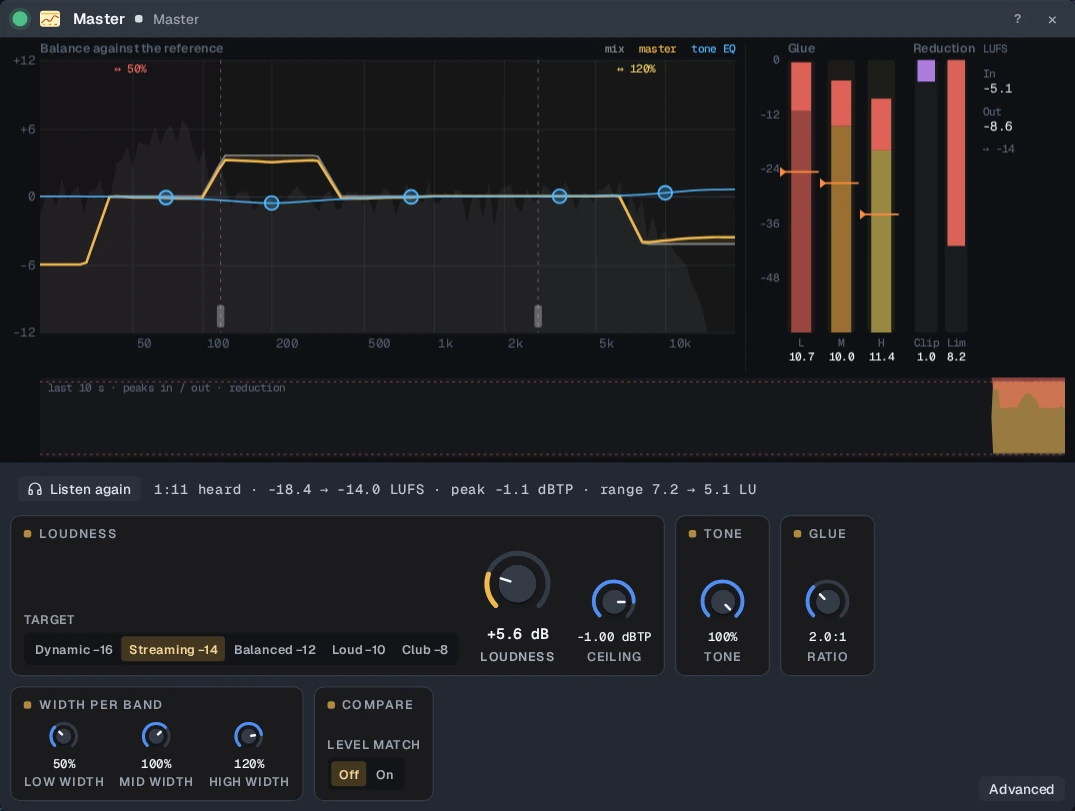
- Listen to the song (or Listen again) measures the whole mix up to this effect and sets the controls.
- Level match: turn it on to compare with bypass, off to export.
With Level match on, the kick has lost its punch.
Loop the loudest chorus and lower Loudness a few dB while watching the reduction. If the kick's attack comes back, a slightly quieter master is the better trade. Turn Level match off for the final reading.
Measure the result with Analyzer
Use it when you want to know how loud the song is, how high its peaks reach, or how the frequencies and stereo image are spread. Analyzer only measures; it never changes the sound.
- Add Analyzer as the last effect on the Master insert, after Master or the Limiter.
- Clear the Playlist loop (double-click the ruler), so the whole song plays.
- Start playback from the beginning and let it run to the end of the last tail.The readings start over each time playback starts.
- Read Integrated for the whole-song loudness and True peak for the highest peak.
Choose a Target in the Analyzer (Streaming −14, Loud −9 or Broadcast −23) to draw it as a reference line. The Analyzer then tells you, for example, how many dB quieter streaming would play the song. It also shows Short-term and Momentary loudness and the Loudness range; hover the spectrum to read the note at that frequency.
When the numbers are right, export the song and listen to the finished file.
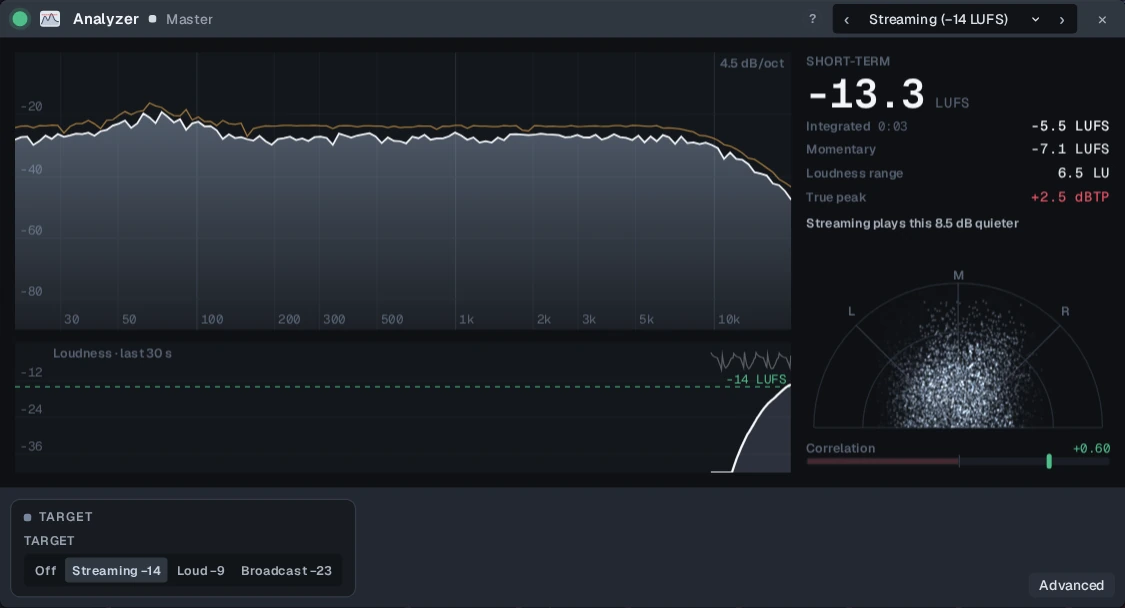
- Integrated: the whole song's loudness, after a full pass.
- True peak: the highest peak of the same pass.
True peak is near the ceiling, but Integrated is low.
A few very loud hits are holding the whole song down. Use the loudness history to find them, often one snare or a single effect. Turn that hit down in the mix, then measure the full song again.